How to Write and Execute a SQL Query
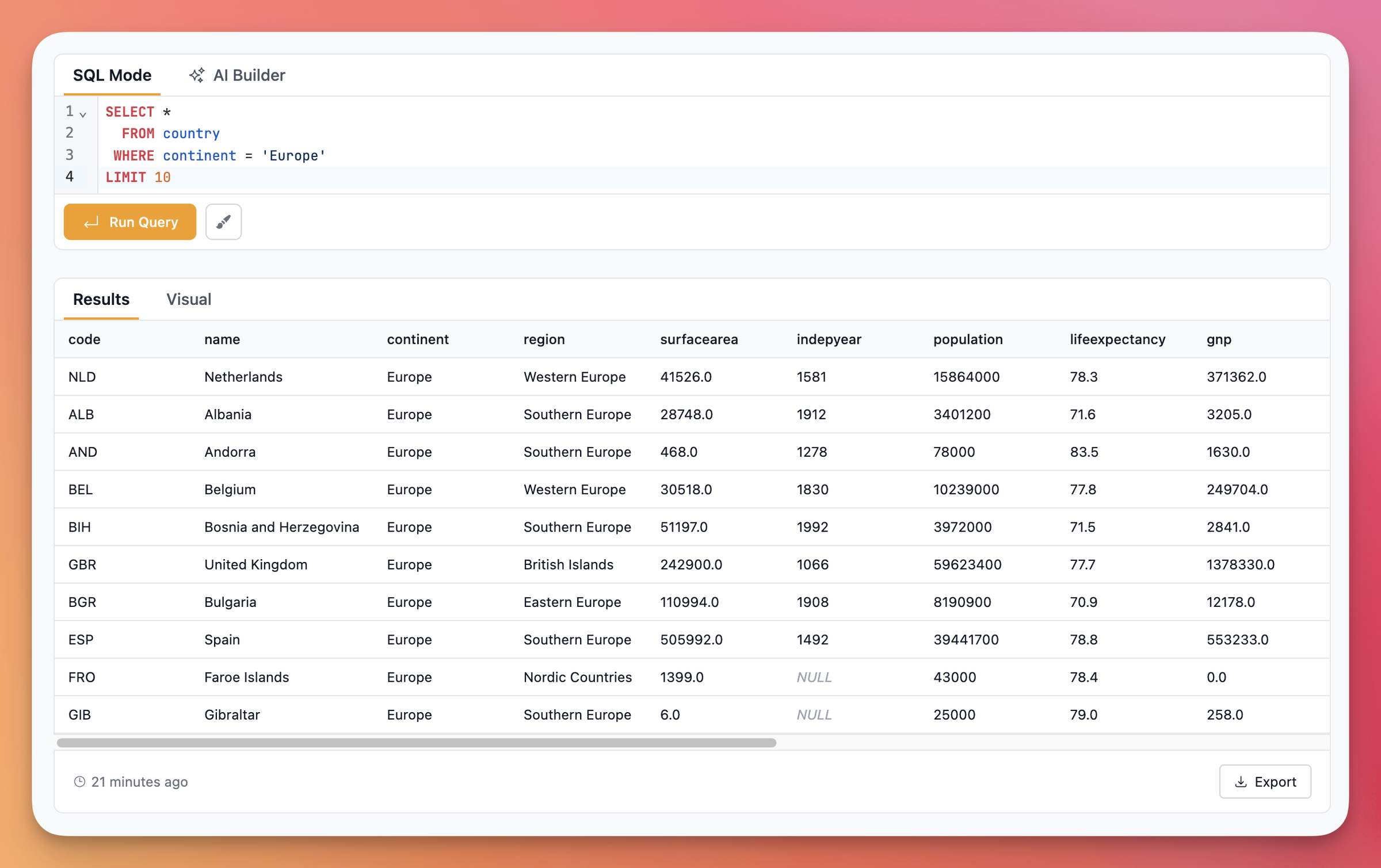
Writing and running SQL queries in Indiequery is straightforward. Here's what you need to know.
Writing Your Query
When you open a query in Indiequery, you'll see an editor with two modes:
SQL Mode lets you write queries directly. The editor includes autocomplete for table names, column names, and SQL keywords as you type. If you've selected a database connection, the autocomplete will suggest tables and columns from your actual schema.
AI Builder generates SQL from plain English instructions. Describe what you want to query, click "Generate Query," and Indiequery will write the SQL for you. You can refine your instructions or use the generated query as-is.
Executing Your Query
Once you've written your SQL, click the "Run Query" button or press Cmd+Enter (Mac) or Ctrl+Enter (Windows/Linux).
If you haven't saved your query yet, Indiequery will save it automatically before running. You'll need to have a database connection selected for the query to execute.
The query runs in the background, so you can navigate away or work on other things while it processes. Results appear in the card below the editor once the query completes.
Understanding Results
Successful queries display a table with your data. You can export results to CSV or JSON, create visualizations, or paginate through large result sets.
If your query has an error, you'll see the error message in the results area. Common issues include syntax errors, invalid table or column names, or permission problems with your database connection.
Tips
- Use the prettify button (next to Run Query) to format messy SQL
- Browse your database schema in the collapsible panel below the results to see available tables and columns
- View query history to revert to previous versions of your SQL
- All connections are read-only, so you can't accidentally modify your data