How to Export Query Results
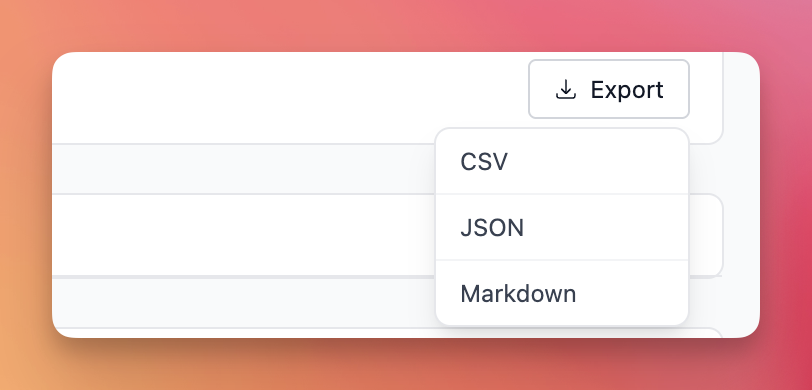
After running a query, click the Export button below your results table. You can download your data as CSV, JSON, or Markdown files instantly.
Step-by-Step Guide
- Run your query in the query editor
- Wait for results to load in the table
- Look for the Export button (with download icon) next to the timestamp
- Choose your format:
- CSV - Opens in Excel, Google Sheets, or any spreadsheet app
- JSON - Perfect for developers or API integration
- Markdown - Great for documentation or GitHub
Your file downloads immediately with a timestamped filename like my_query_2025-01-06_14-30-45.csv.
Available Export Formats
CSV (Comma-Separated Values)
Best for spreadsheets and data analysis. Includes UTF-8 encoding so special characters work properly in Excel.
JSON (JavaScript Object Notation)
Each row becomes an object with column names as keys. Ideal for importing into other apps or scripts.
Markdown Tables
Clean, readable format perfect for pasting into documentation, README files, or GitHub issues.
Common Use Cases
- Export customer lists to send emails
- Download analytics data for presentations
- Share query results with teammates via Slack or email
- Import data into other tools or databases
- Create backups of important query results
Troubleshooting
Export button is gray or missing: Make sure your query has finished running and returned results.
File won't open in Excel: Try the CSV format with UTF-8 encoding support. Modern Excel versions handle this automatically.
Getting a row limit warning: Your query returned too many rows. Consider adding filters to reduce the result set.